Home, Search & Discover
Home
The landing page greets you with your instance's name and its tagline, both set in configuration, and stacks the things most worth a glance.
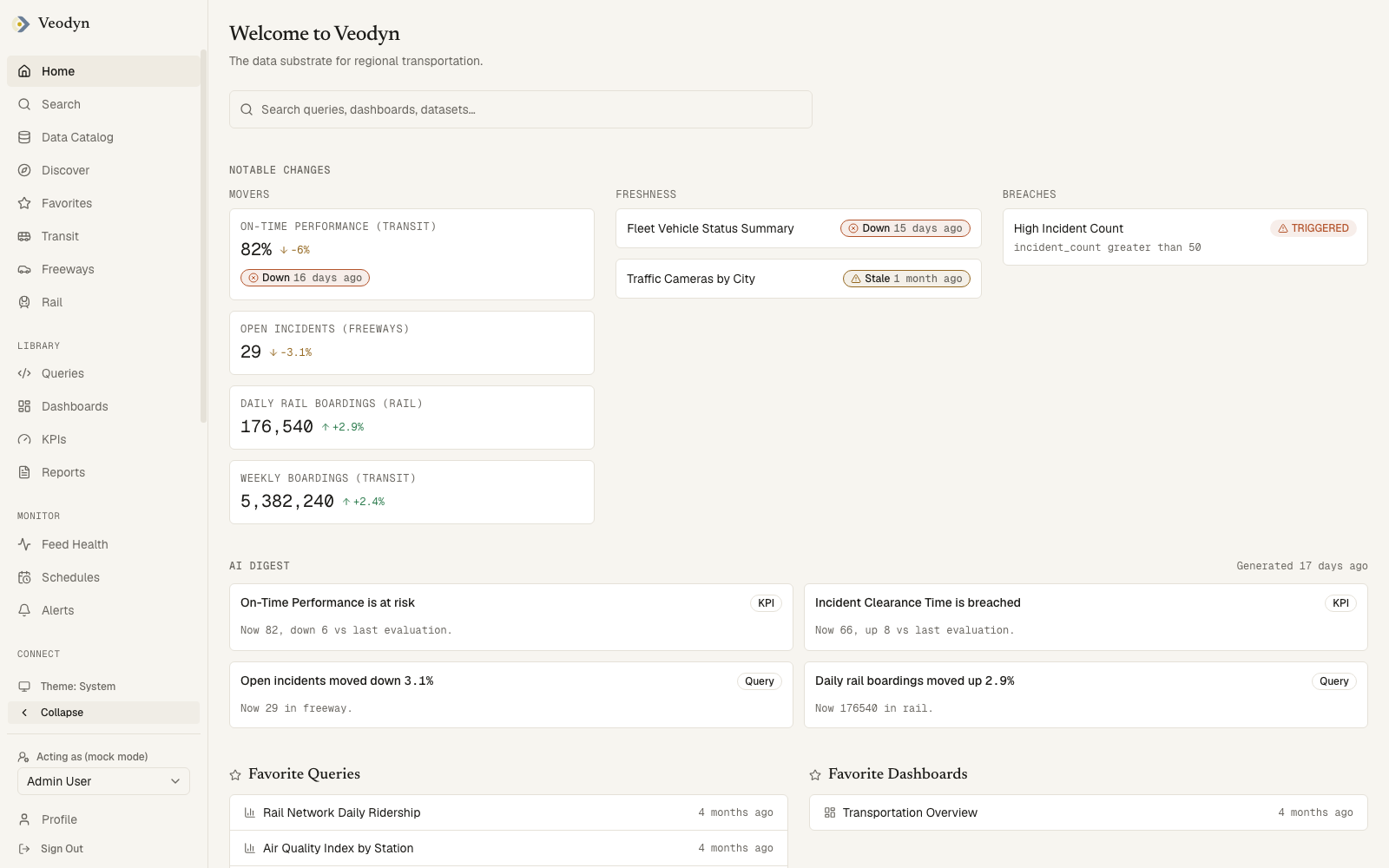
Every section below the search box is conditional. A section with nothing to say is not rendered at all, rather than shown as an empty shell, so two people can open Home and see a different number of sections. A brand-new instance shows the greeting and the search box and nothing else.
Omnisearch
One field, labelled Omnisearch for assistive tech, placeholder Search queries, dashboards, datasets…. Press Enter and it hands the term to the full Search page as /search?q=…, which carries it into its own box and runs it. A blank or whitespace-only term does nothing, so Enter on an empty box will not send you to an empty results page.
It searches nothing itself. It is the entry point to search, not a second search.
Notable changes
Up to three groups, each present only when it has content, and the strip disappears entirely when all three are empty. The layout follows how many actually render, so two groups share the width rather than leaving a third of the row blank.
| Group | Holds | Each card links to | Edition |
|---|---|---|---|
| Movers | Counters that shifted, with value, unit, and the size and direction of the change | The KPI behind the counter, or the domain page when no KPI backs it | Enterprise, since a counter is a KPI |
| Freshness | The freshest dataset, and the stalest when it is a different one, each with a freshness badge | That dataset in the catalog | Community |
| Breaches | Alerts currently outside their threshold, with their state badge and the condition they broke, such as avg_speed < 22.5 | That alert | Enterprise, with the alerts surface |
A mover backed by a KPI also carries a freshness badge underneath it, and it is worth knowing exactly what that badge measures. A counter reading "222 stations, No change" is reassuring, and it can equally mean the number held steady or that no new data arrived at all. The badge is meant to separate those two: it reports the age of the dataset underneath the KPI, not when the KPI last recomputed, because a metric sitting on a dead feed goes on recalculating on schedule and reporting itself freshly evaluated.
Where a KPI cannot be traced to a dataset, no badge appears rather than one nothing supports. The same badge, with an explicit Underlying data label, appears on the KPI's own page.
AI digest (enterprise)
Part of the enterprise edition: a community build has no digest endpoint and renders no digest section. Where it is installed, it appears only when AI is enabled, and only when the digest has at least one claim worth showing. Each claim is a card with a headline, a sentence of detail, and a Query or KPI badge, and the whole card links to the object it cites. The destination comes from the source the claim names, never from the generated text, so a claim about a KPI can only ever open that KPI.
A claim with no page behind it is dropped instead of shown, on the grounds that a claim nobody can check is worse than one that is missing. When every claim is dropped, or the digest is empty, or the request fails, the section simply is not there.
That has a consequence worth knowing: an absent digest is not a signal. It looks identical whether AI is switched off, the digest is still warming up, it produced nothing, or every claim was unprovable. If you are checking whether digest generation works, the section's absence will not tell you.
The heading carries a Generated timestamp, or reads Demo data when the digest has no generation time to report, rather than showing a date that would read as stale.
Favorites and Recent Queries
Favorite Queries and Favorite Dashboards sit side by side, each showing your five most recent starred items with the time each was last updated. A list you have not starred anything in is absent, so with no favorites at all neither appears.
Recent Queries lists the eight most recently updated queries across the whole org, not just yours, each with its author. It is the one section that shows other people's work by default.
The assistant widget
An instance can configure an external chat assistant, which appears as a floating button that opens a slide-over panel. The panel loads the assistant from the configured URL the first time you open it. With no assistant configured there is no button, which is the default.
Search
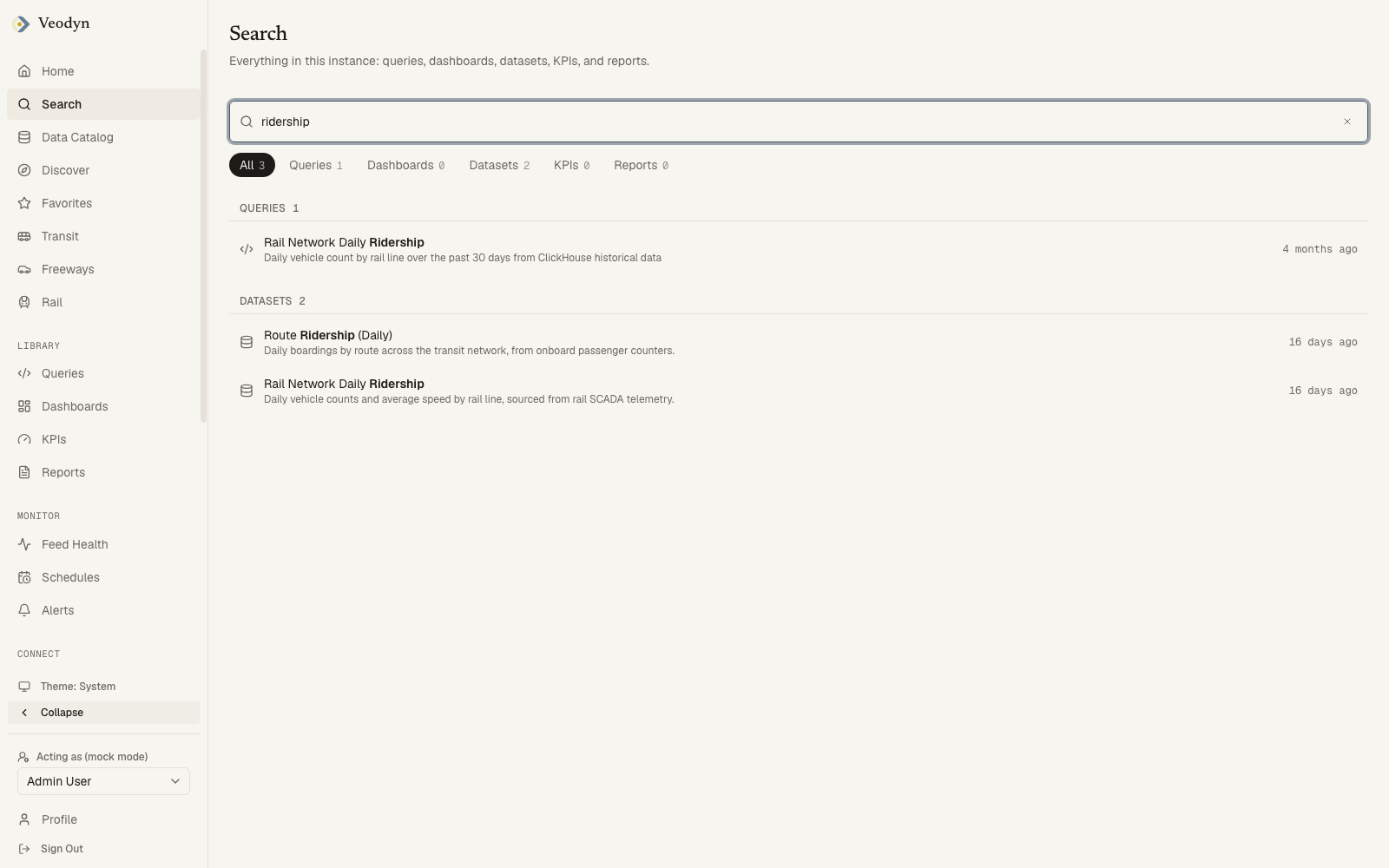
/search searches everything in the instance at once: queries, dashboards and datasets, plus KPIs and reports where those enterprise features are installed. The field takes focus the moment you arrive, so you can land here and start typing.
Results arrive as you type, a moment after you stop. The address bar keeps up with the settled term, so the URL is always shareable, but typing does not fill your history: Back returns you to wherever you came from rather than walking backwards through the term one letter at a time.
Filtering by type
All / Queries / Dashboards / Datasets, plus KPIs and Reports on an enterprise build, each showing how many of that kind matched. There is no tab for a kind this build does not have. The counts appear only once a search has settled, so a number on a tab always describes the results you are looking at rather than the previous search.
Results are grouped under a heading per type, and each row carries a type icon, the object's name, its description, and when it last changed. The part of the name that matched is highlighted.
Filtering by tag
Clicking a tag chip anywhere in the product lands here as ?tag=rail, shown as Tagged with the tag beside it and a Clear tag link, since a filter you cannot see is one you cannot remove.
A tag on its own is a complete search: with an empty box and a tag applied, the page lists everything carrying that tag. Switching type tabs keeps the tag.
Keyboard
The page is operable without a mouse. Down from the field moves into the results, Up and Down step between them, Up from the first row returns to the field, and Enter opens the focused result. Escape clears the box.
Focus moves between real links rather than a highlighted index, so middle-click, right-click and open-in-new-tab behave the way they do anywhere else. Screen readers hear each search settle, fail, or come back empty.
What you see before you search
Your recent searches, kept in your own browser rather than on the server, most recent first. Each is one click to run again, each has an × to forget it, and Clear empties the list. Only searches that actually returned are remembered, and only ones you typed: arriving by tag chip does not add an entry.
Before you have searched anything the page says what it covers rather than showing an empty labelled block.
When something goes wrong
| State | What you see |
|---|---|
| Loading | Placeholder rows while the search runs |
| No matches | No results for "term", or on a type tab, No queries match "term" |
| Failed | Search failed. Try again. with a Retry button |
A failed search says so and offers a retry rather than presenting itself as a search that found nothing. That distinction is not universal across this product, so it is worth knowing that here it holds.
Discover
/discover is a shortlist: twelve dashboards and queries, mixed together in one grid, meant to answer "what does this org actually look at" for someone who has just arrived.
The order is deliberate and has two tiers. Anything you have starred comes first, then everything else by how recently it changed. Favourites outrank recency absolutely, so a starred dashboard you have not touched in a month still sits above a query edited this morning.
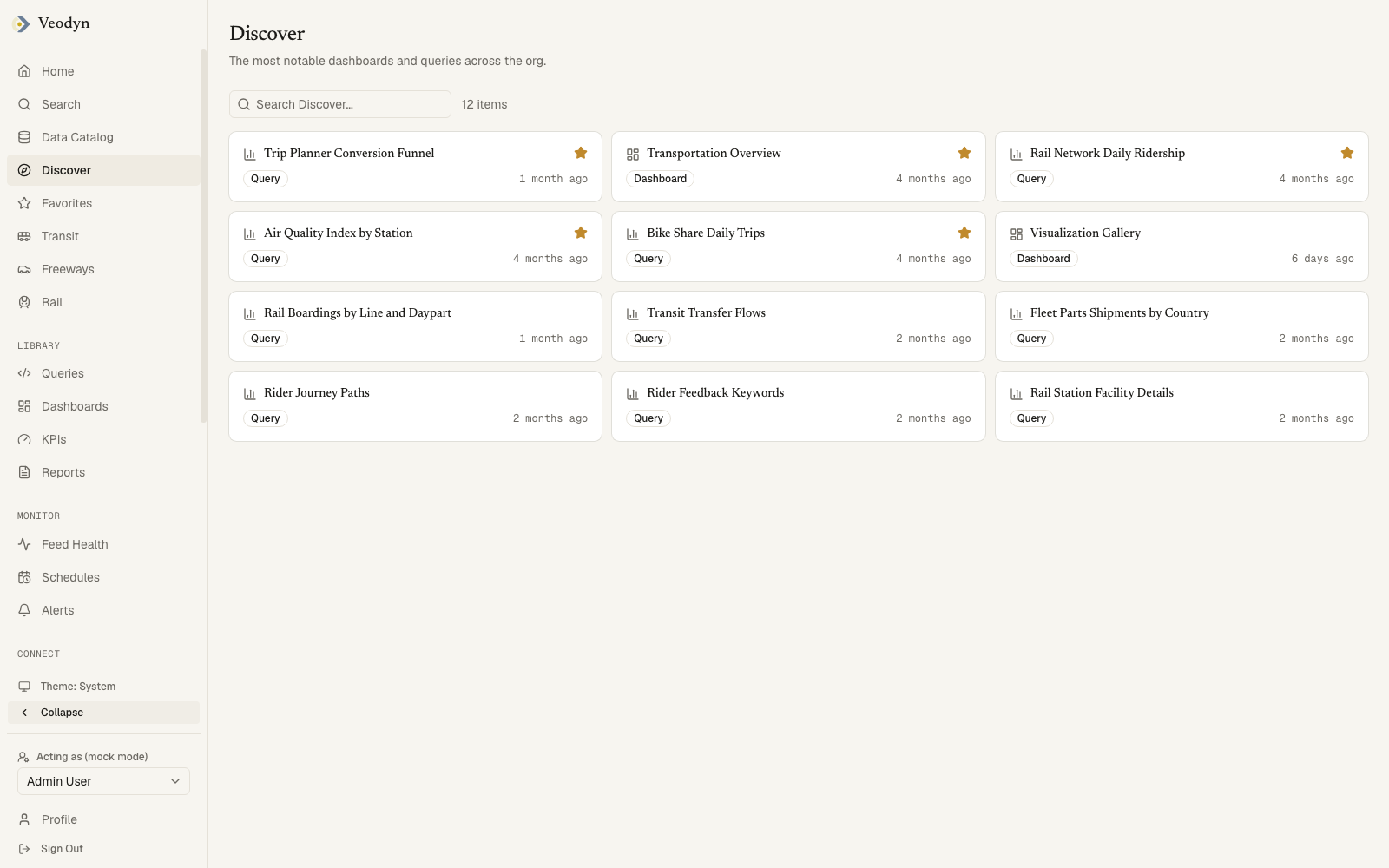
Each card carries a type icon, the object's name, a filled star if it is one of your favourites, a Dashboard or Query badge, and when it last changed. The whole card is the link.
The search box narrows the cards on this page. It is a way to pick one out of the shortlist, not a way to find something that is not on it: for that, use Search, which covers the whole instance and every object type.
While the two lists load you get placeholder cards. With nothing to rank the page says Nothing to discover yet., and a search matching none of the cards says Nothing matches that search.
Reports and view-count ranking are not part of this page yet; it ranks dashboards and queries on stars and recency alone.
Favorites
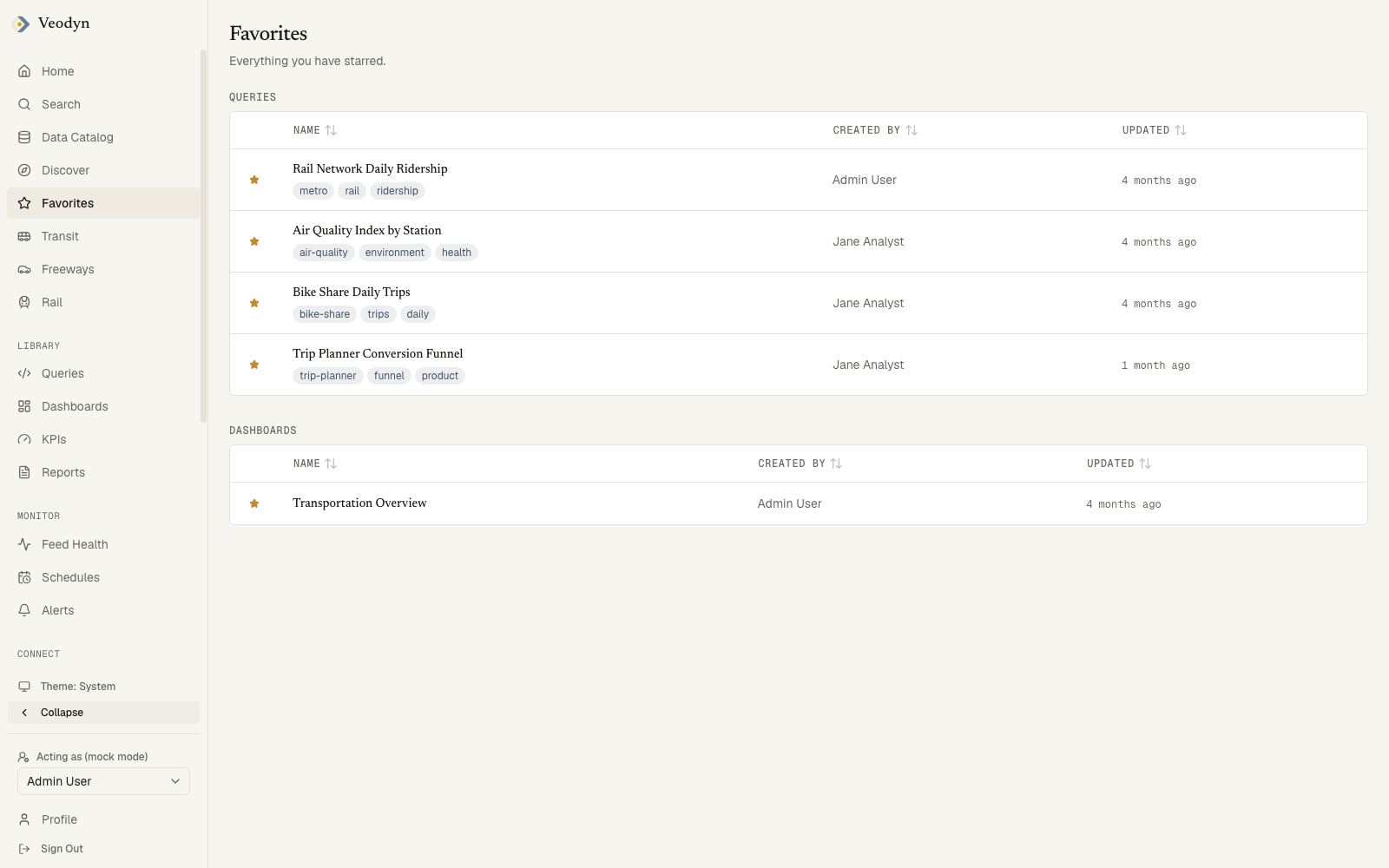
/favorites is everything you have starred, in one place. Stars are per-person: this is your shelf, not the org's.
Queries and Dashboards are always present. KPIs and Reports are enterprise sections, and even there they appear only if you have starred one, on the grounds that an empty table under a page already saying you have starred nothing is two answers to the same question.
| Section | Columns | Edition |
|---|---|---|
| Queries | Star, Name with its tags, Created By, Updated | Community |
| Dashboards | Star, Name, Created By, Updated | Community |
| KPIs | Star, Name, current status, Owner | Enterprise |
| Reports | Star, Name, Owner, Updated | Enterprise |
Query and dashboard stars are the query service's, and the two enterprise sections are the
only ones the sidecar stores. That is why a community build's /favorites
endpoint knows no object kinds at all and this page still works.
Every column but the star sorts. Nothing here pages: the whole shelf is on one screen.
The star in the first column is live. Clicking it un-stars the object, which takes the row off this page. You can star from any list row or detail page elsewhere in the product and it turns up here.
This page tells you when it is not sure
Most screens in this product treat a list they could not read as a list with nothing in it. This one does not, and the distinction matters more here than anywhere else: a favourite is found by reading your libraries and picking out the starred ones, so an unread library and an unstarred account produce the same empty page for two completely different reasons.
| What happened | What the page does |
|---|---|
| Still loading | Placeholder rows, never "no favourites" before the answer arrives |
| A list could not be read | A warning that some favourites could not be read and the page may be missing things, above whatever it did manage to read |
| More content than it could read | A note that some favourites may not be shown |
| Nothing starred | An invitation, linking to Queries, Dashboards, KPIs and Reports |
So a warning here does not mean you have lost a favourite. It means this page cannot promise the list is complete, and it would rather say so than let you conclude you never starred the thing you are looking for.