Reports
Reports are part of the enterprise edition. A community build serves no report endpoints and creates no report tables, so nothing on this page is reachable on one, including the public report link.
Reports are board-facing documents: prose and data blocks composed into a single page whose numbers can be frozen, reviewed, approved, and published to a public link or a PDF. They live in Library → Reports.
What separates a report from a dashboard is time: a dashboard always shows now, while a published report shows what was approved. Once a report is published, the public link and the PDF keep serving the approved version even while the author drafts changes.
The report list
One list, no tabs. Each row shows a star, the name, owner, domain, a State badge, and Data as of. Every column but the star sorts, and the list breaks at 25 rows.
State is the report's position in the review workflow: Draft, In review, Published or Unpublished. Only Published is drawn filled, so on a long list the live ones are the rows that stand out and everything else stays a quiet outline.
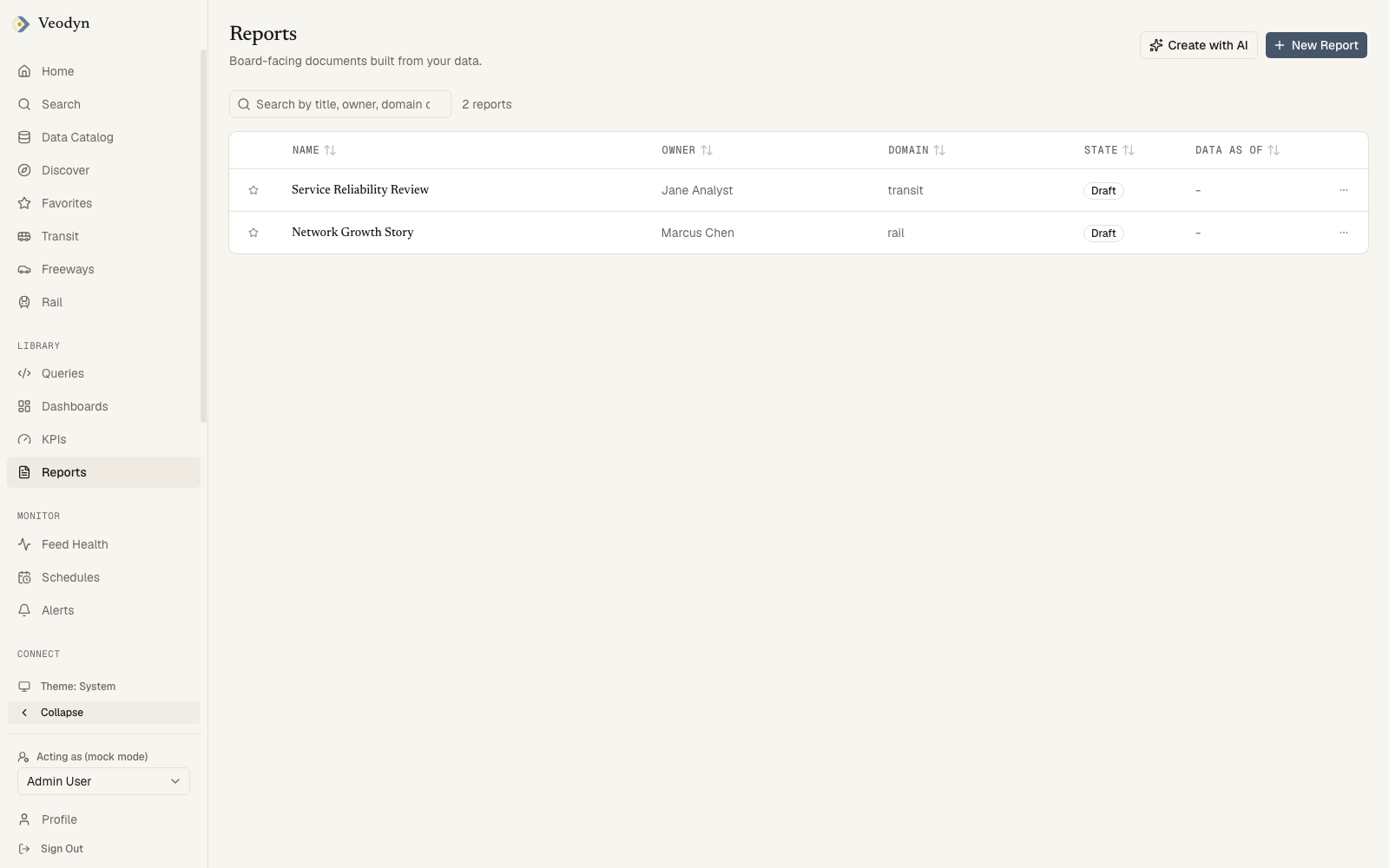
Data as of is the timestamp of the report's latest snapshot, and reads - for a report that has never been snapshotted. A dash there means the document has no frozen numbers in it yet, which is also why it cannot be submitted for review.
Finding one
The search box matches title, owner, domain and state together, so typing in review lists every report awaiting review whether or not the word appears in its title. It is the closest thing this list has to a status filter.
The row menu holds Delete, for the owner or an admin, and renders nothing at all for anyone else.
Header buttons: New Report, and Create with AI when AI is enabled.
When the list is empty
Unable to load reports... when the service cannot be reached, No reports yet. on an instance with none, and No report matches that search when your search excluded them all. Three situations, three sentences.
Creating a report
New Report asks for three things and nothing else, because everything that makes a report a report is added afterwards in the editor.
| Field | |
|---|---|
| Report title | Required, up to 300 characters, which is the limit the backend accepts |
| Owner | Required, free text: the team or person answerable for the document |
| Domain | Optional |
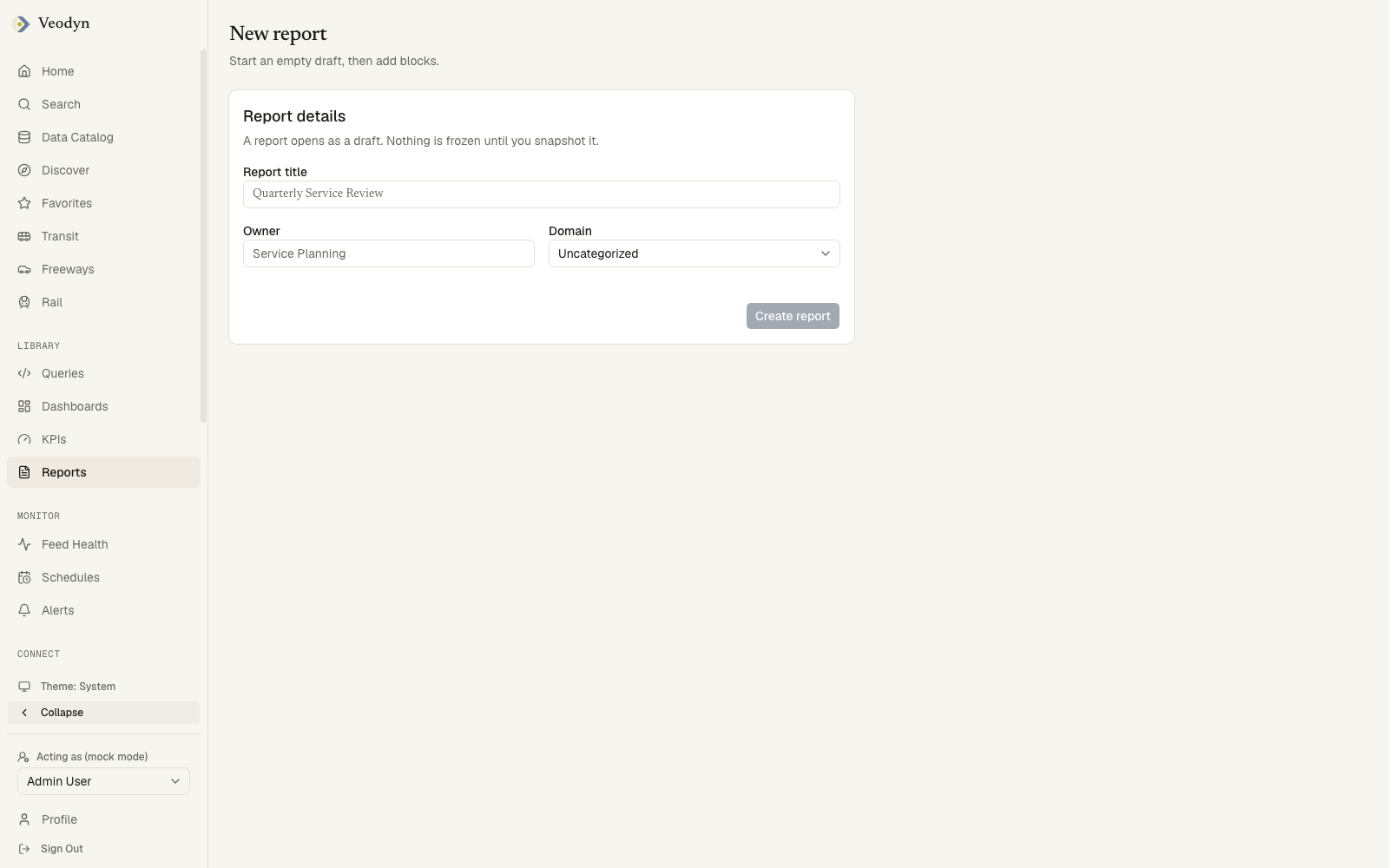
The card states the contract up front: A report opens as a draft. Nothing is frozen until you snapshot it. Create report stays unavailable until the title and owner are filled, and a failed create leaves you on the form with the reason rather than sending you to an editor for a report that was never stored.
The report's URL is derived from its title, so Quarterly Service Review becomes /reports/quarterly-service-review. If that address is taken the id gains a numeric suffix, and you land on whichever id was actually stored.
Unlike the KPI form, which offers the instance's configured domains in a dropdown, this field accepts any text. A domain that does not exactly match a configured one still displays in the list and is searchable, but the report will not appear under that domain page. If you want the report grouped with everything else on its subject, match the spelling of an existing domain.
Creating the report opens the block editor on an empty draft.
You can also start from an existing dashboard (Promote to report copies its widgets into blocks) or from a Create with AI outline.
Reading a report
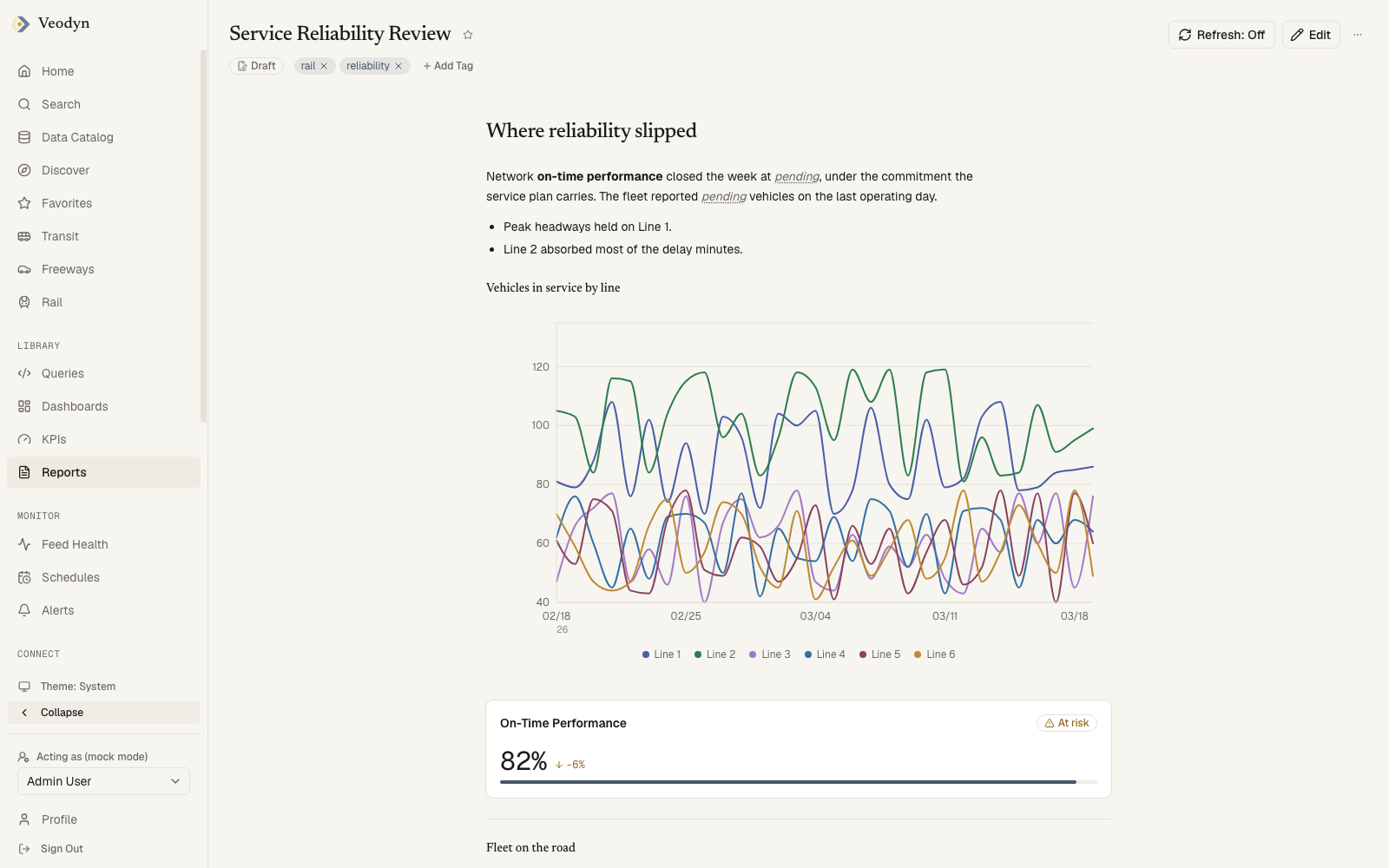
The report's own page is the document, with one row of chrome above it: the title and star, then a metadata row carrying the state badge, Data as of, and the tags. A report that has never been snapshotted shows no Data as of at all rather than an empty stamp.
Which controls appear depends on where the report sits in its lifecycle:
| Control | When it appears |
|---|---|
| Refresh | Always, showing the current cadence or Off |
| Download PDF | Only once the report has a snapshot. There is nothing to print before that |
| Edit | Only when editing is not locked |
| Editing is locked while this report is in review. | In place of Edit, once the report is in review |
| Overflow menu | Always: Publishing, Audit trail, and Delete |
Tags follow the same lock: editable on a draft, read-only while the report is in review. The backend refuses a tag write on a locked report, so an editable chip there could only ever produce an error.
Where the report has been approved and the approved version cannot be retrieved, Download PDF stays visible but states why it will not work, rather than sending you to a chrome-free print page that says no.
The edit lock covers editing, not removal. Delete stays available in the overflow menu throughout review, because the backend does not consult the lock either. If you want a report to survive its review, the lock is not what protects it.
A report id that does not exist says Report not found.
The block editor
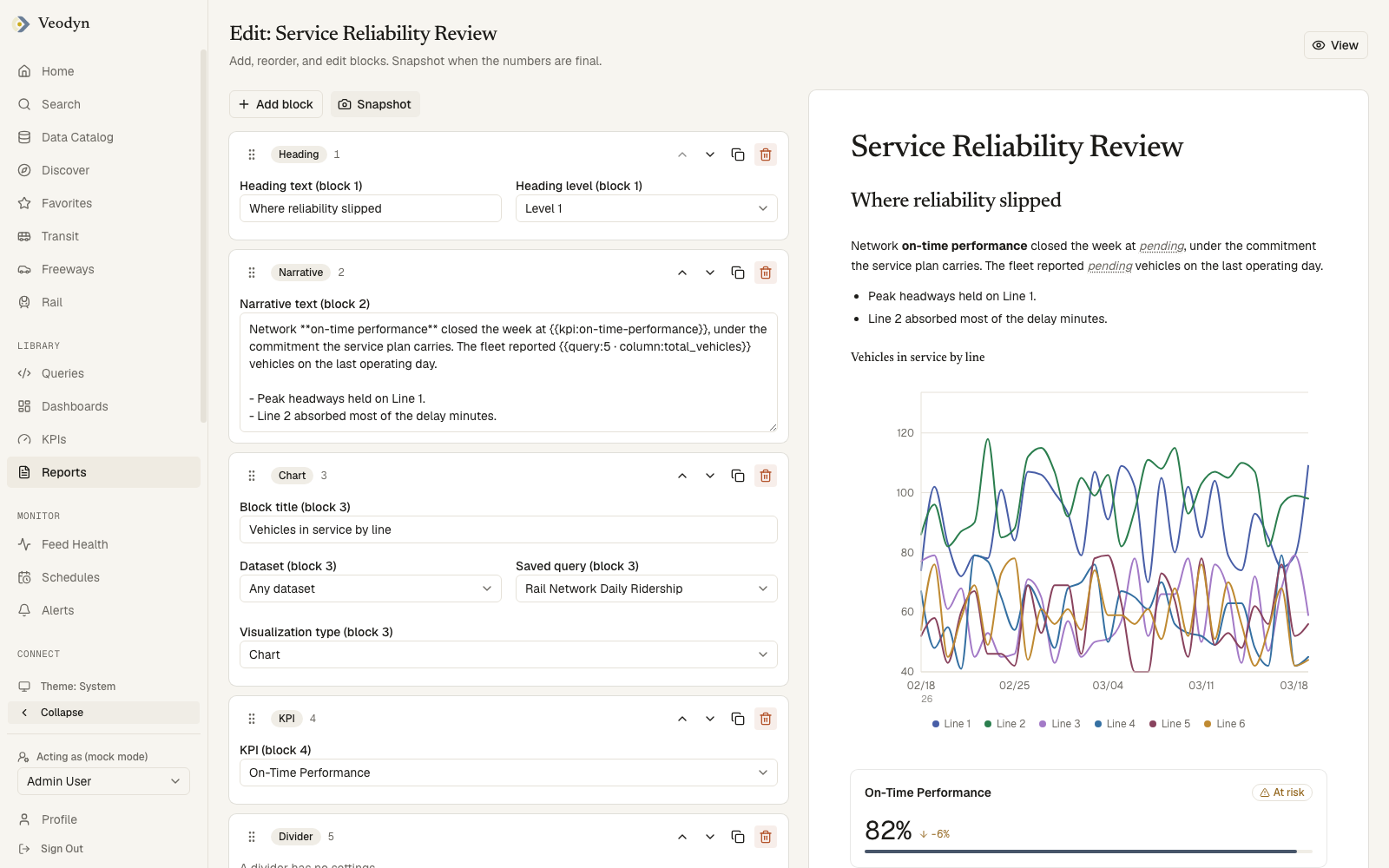
The editor is two columns: reorderable block rows on the left under Add block and Snapshot, a live preview of the document on the right. A report with nothing in it says so on both sides, so an empty editor is never mistaken for one that failed to load.
Blocks come in eight types:
| Block | Contents |
|---|---|
| Heading | Text with a level (1 to 3) |
| Narrative | Prose, with inline data references written as {{query:12 · column:riders}} that render as live values |
| Chart / Counter / Table / Map | A data block: a title, a source query, a visualization type (Chart, Counter, Table, Pivot, Map, Funnel), and, for maps, coordinate columns |
| KPI | An existing KPI's scorecard |
| Divider | A horizontal rule (no settings) |
Rows are reordered by drag or arrows, and each has Duplicate and Delete. Saving is automatic with a visible status; a failed write surfaces an inline alert with Retry rather than losing work silently.
The editor in each state
Opening the editor on a report that is in review does not show an editor at all. It shows Editing locked, telling you to reject it back to draft to make changes, with the document read-only beneath and a View button back to the report. There is no way to edit around the lock.
A published report stays editable, and the editor says plainly what that does and does not affect:
Published version is frozen. The public link and the PDF keep serving the approved version. Changes here stay private until this report is reviewed and approved again.
That is the part worth internalising: editing a published report is safe. Nobody reading the public link sees your work in progress, and nothing you type reaches them until the report goes back through review.
Snapshots
The Snapshot button runs every data block's query and freezes the results into the document, stamping Data as of. Review and publication operate on snapshots: every data block must resolve to a snapshot before a report can be submitted for review.
Review and publishing
The Publishing dialog walks a report through its states:
- Draft → Submit for review. Editing locks while a report is in review; the editor is replaced with a notice, and tags become read-only.
- In review → Approve, Publish, or Reject. These require the publish permission. By default the four-eyes rule applies: the person who submitted a report cannot be the one who approves it (operators can relax this with
reports.require_separate_approver). Reject requires a written rejection note and returns the report to draft. - Published → Unpublish, Copy public link, Open public page, Revoke link. Publishing mints the public link; an optional expiry date can be set ("Public link expires"; empty means it lives until revoked).
Every disabled control in the dialog states its reason ("Only an approved report can be published", "You submitted this report for review, so under the four-eyes rule someone else has to approve it"), so the path forward is always readable off the screen.
The Audit trail dialog lists the full history: created, submitted, snapshotted, approved, returned to draft, published, unpublished, link revoked.
Refresh cadence
A report can re-freeze itself on a schedule: Refresh: Off / Hourly / Daily in the header. This re-runs the snapshot server-side, so a published report can stay current without anyone opening the editor. The control is disabled, with the reason stated, for users without the publish permission or while the report is locked.
PDF and print
Download PDF opens a chrome-free print view with a single Print / Save as PDF button, which is the browser's own print dialog rather than a server-rendered file. It opens the dialog for you on arrival; adding ?autoPrint=false to the URL suppresses that if you would rather look first.
What it prints is frozen, and which frozen version depends on the report's history:
| The report | Prints |
|---|---|
| Has been through approval | The approved publication, read by report id, never the author's later edits |
| Was snapshotted but never approved | Its own snapshot |
| Has no snapshot | Nothing. Finalize this report before downloading a PDF. |
| Was approved, but that record is gone | Nothing. The approved version of this report is no longer available, so there is nothing to print. |
Unpublishing a report or revoking its link takes the public link away without un-approving anything, so neither is a reason for the PDF to fall back to the live document. It refuses instead.
Because this page has no app chrome, every refusal carries a Back to the report button rather than leaving you with only the browser's back button.
Public links
reports/public/<token> renders the frozen snapshot to anonymous readers, with search engines told not to index it. Any refusal (revoked, unpublished, unknown token, backend outage) reads the same: "This report is no longer available. The link may have been revoked." The token is never echoed back, so a screenshot of the refusal cannot leak it. Admins govern all live links at Admin → Shared Links.