Team & Groups
Admin → Team manages who can use the instance and what data they can reach. It has two tabs.
Users
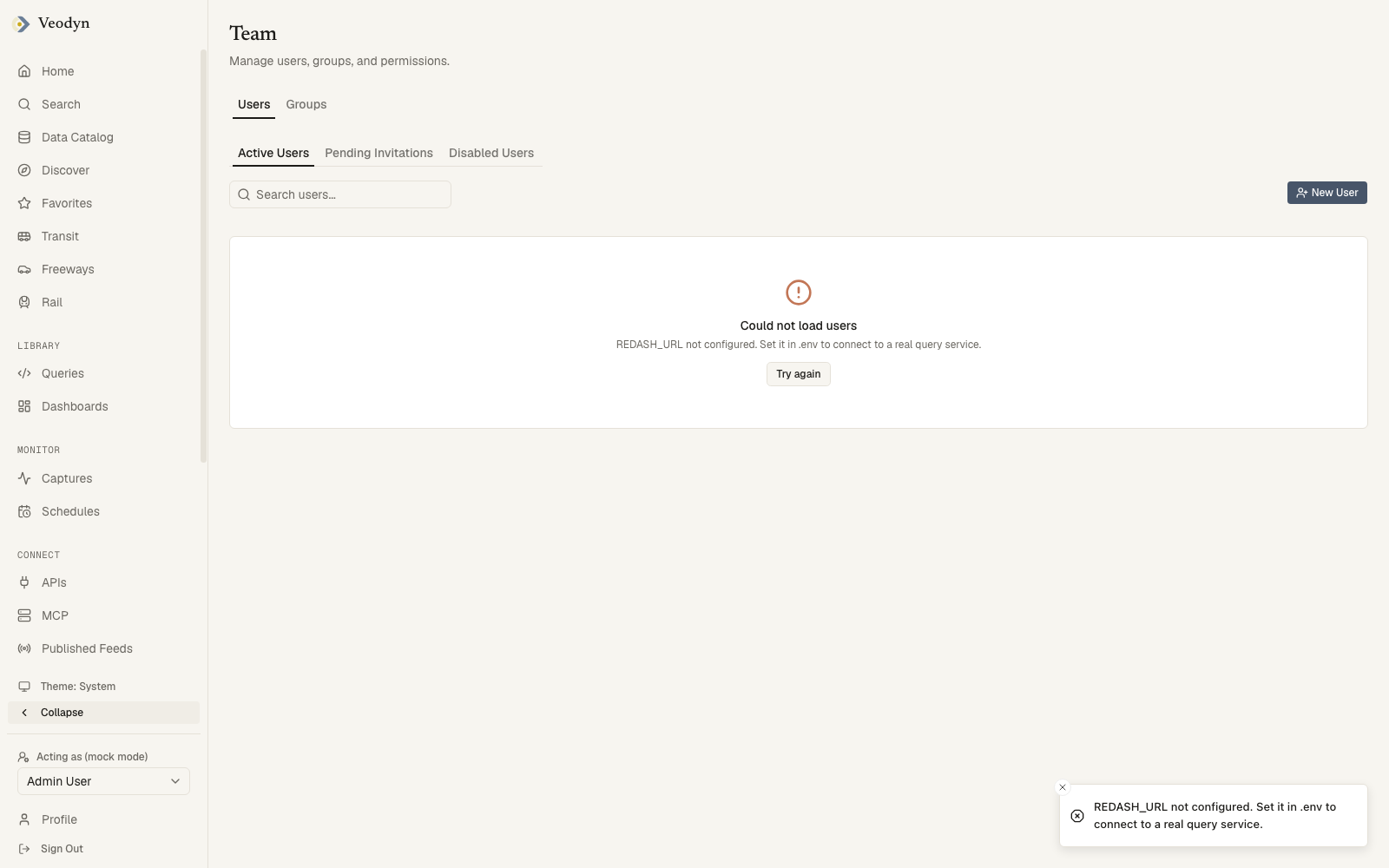
The Users tab splits into Active Users, Pending Invitations and Disabled Users, each searchable and paged. Every row shows the person's name and email, their group badges, when they joined and when they were last active, with the action available for that row at the end: Disable for an active account, Delete for one still pending.
New User opens the invite dialog (name and email); the invitee receives a link to set their password and activate the account.
Both the Users and Groups tabs are page state rather than addresses, so a reload returns to Users and a link to this page cannot point at Groups directly.
A user's detail page offers:
- Account Details: edit name and email, with an unsaved-changes indicator.
- Security: resend the invitation or send a password reset, with the link available to copy directly (useful when mail delivery is not configured).
- Groups: the user's memberships.
- Danger Zone: disable (or re-enable) the account. Disabling revokes access immediately.
What an account link can and cannot do
The three links this page can produce (verify, invite, password reset) are each scoped to their own purpose. One will not work at another's endpoint, so a verification link mailed to someone is not also a way to reset their password.
They also stop working once the password is set, rather than staying valid for the rest of their lifetime. That matters most for the copy-the-link case above: if the same reset link is handed out twice, the second use fails, so reissue it from this page instead of reusing the one you already copied.
If a user's page cannot be read, a toast reports Failed to load user and the page then settles on User not found. The toast fades and the page text stays, so what remains on screen says the account does not exist when the request may simply have been refused or timed out.
Reload before concluding an account was deleted. The user list is the more reliable check, because it does report a failed read as an error.
Groups
Groups are how data access is granted. Create a group, then manage two lists on its page:
- Members: search users and add or remove them.
- Data Sources: attach data sources to the group and set each to View Only or Full Access.
A user's effective access is the union of their groups. Because every query read rides the user's own session, these permissions hold everywhere: dashboards, the catalog, MCP, and the API can never show someone a result their groups do not allow, and neither can any feature an enterprise build adds.
Admin tiers
Organization admins see the Admin section of the sidebar. A smaller set of super-admin pages (System Status, Query Jobs, Outdated Queries) requires the backend's super-admin permission; see System Administration. A non-admin who opens an admin URL gets a plain "You don't have permission to access this page."