AI Features
With an AI provider configured, Veodyn gains a set of assisted flows. Three rules hold everywhere:
- With
ai.enabledfalse, no AI control renders anywhere, and every flow the AI assists still has a manual path, so switching it off leaves a product that works rather than one with holes in it. - The model writes the words and code assigns the IDs. Grounding is assembled server-side from what your instance actually has, and a model's pick is looked up against that same list, so a suggestion can't link to a query that does not exist or mis-cite a source.
- Generated SQL lands in the editor for you to read, and proposals become objects only when you press Create. Nothing runs or saves on its own.
Create with AI
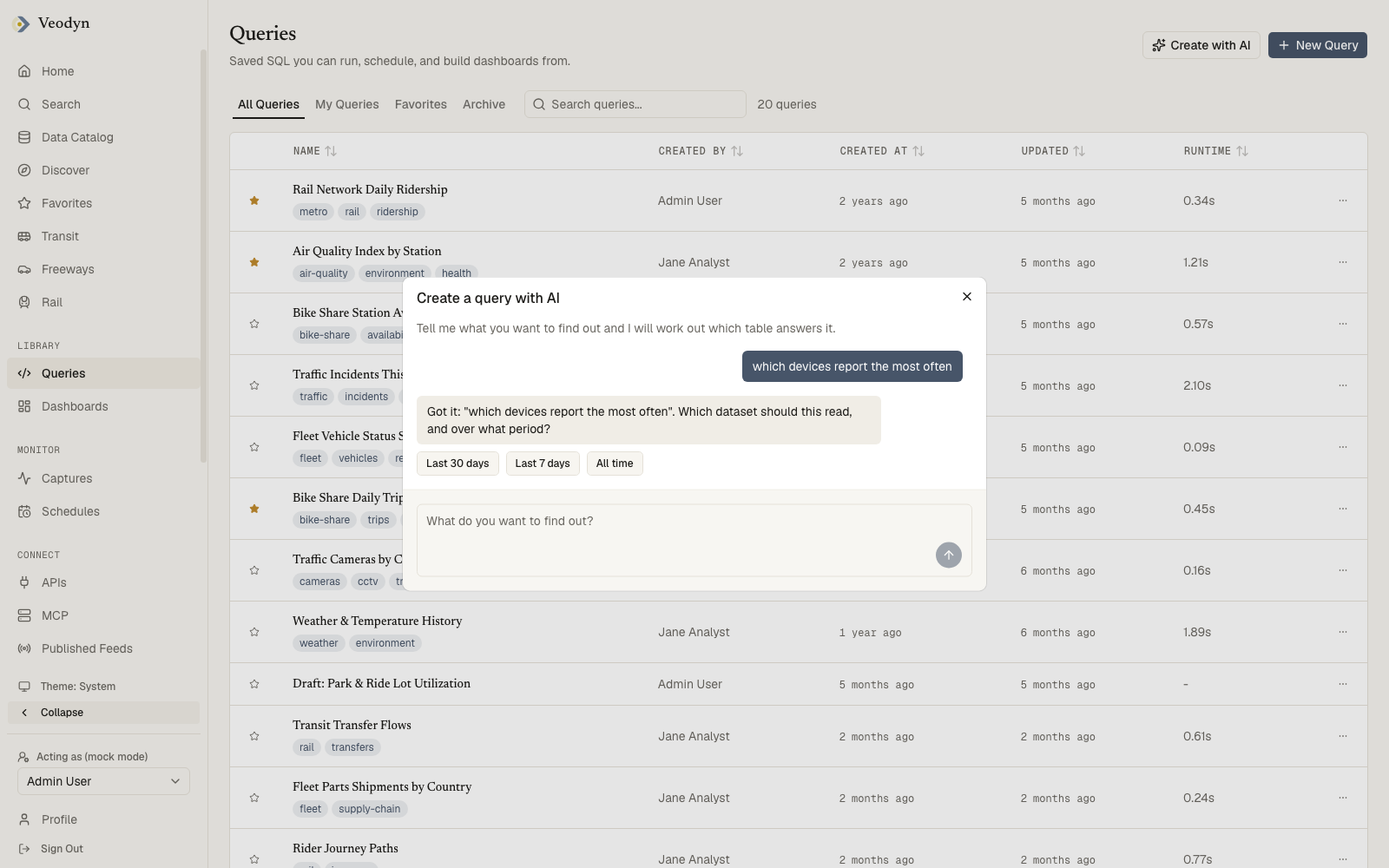
A Create with AI button sits on the Queries, Dashboards and Query Snippets lists (and in the query editor), and on the KPIs and Reports lists where those enterprise features are installed. It opens a chat scoped to that object kind: describe what you want, answer the assistant's follow-ups (replies can carry clickable suggested answers), and when the plan is concrete a proposal card appears in the transcript.
Proposal cards are editable before creation, and each kind shows what it is about to make:
- Query: name, description, the generated SQL in full, data source, and a visualization.
- Dashboard: name and the panel list. Missing queries the AI intends to write are disclosed before creation.
- KPI: name, value column, target, unit, direction, cadence.
- Report: an outline with per-section Include checkboxes, each section marked as reusing an existing query or writing a new one.
- Snippet: trigger, description, and the fragment.
Each kind opens with its own question rather than a blank prompt, which also says plainly what that kind can do:
| Kind | Opens with |
|---|---|
| Query | Tell me what you want to find out and I will work out which table answers it. |
| Dashboard | Tell me what this dashboard is for. I assemble it from queries that already exist. |
| KPI | Tell me which number you want to track and what good looks like. |
| Report | Tell me what this report should explain and who reads it. |
Note the dashboard wording. It assembles from queries that already exist, so it is not the route to getting new SQL written. These opening lines are fixed copy rather than model output, so they read the same every time.
Nothing happens by accident
Conversations are capped at 12 user turns, and the server enforces the cap as well as the interface.
Nothing is saved as a side effect of talking: an object exists only once you apply its proposal. Closing the chat with a proposal still unapplied asks whether to discard it rather than dropping the work silently, and reaching the cap, or hitting a provider that will not answer, offers the manual path to build the thing yourself.
SQL generation in the editor
The prompt bar above the SQL editor turns a description into draft SQL, placed in the editor with the model's rationale underneath it. It is never executed automatically. After the first draft the bar becomes "Edit with prompt" for iterating. If you hand-edit the buffer while a generation is in flight, your edit wins and the stale draft is discarded.
Where generation cannot work, the bar says why instead of vanishing: a JSON-based data source takes no SQL, a schema entry that is documentation rather than a table cannot be queried, and a provider outage reads "AI is unavailable right now. Write SQL manually below."
SQL safety
Generated SQL passes the same guardrails as the no-code Visual builder: single statement, SELECT/WITH only, no state-changing keywords, identifiers checked against the live schema, values emitted as escaped literals, and the tables read must belong to the dataset you asked about. A refused generation is retried once with the reason, then handed back to you.
Edit with AI (dashboards)
In a dashboard's edit mode, Edit with AI opens the same chat pointed at the existing dashboard. The proposal shows the change as a diff of which panels are being added, removed, or redrawn, so you can see exactly what applying it will do.
The digest (enterprise)
The digest and the annotation suggestions below are part of the enterprise edition. Their endpoints are absent from a community build's AI provider, and the Home section and the dialog button that call them are absent with them. Everything above this line is community.
The Home page's AI digest is a short list of generated claims about your data, each citing the query or KPI it reads via a badge that links straight to it. Candidates arrive carrying their own source IDs and the model only writes the sentence, so a claim that cannot cite a real source is dropped rather than shown. The digest reads cached results only; it never launches query runs on its own.
Annotation suggestions (enterprise)
In the dashboard annotations dialog, Suggest annotations finds outliers in the actual series and proposes labeled drafts with their time windows. Each is accepted individually and passes the same validation as a manual annotation; a draft that fails is refused with the reason.
Chart authoring
When the AI proposes a chart (in any flow), it also authors the renderer options: column mapping, stacking, axis scale. Those options are sanitized against the same per-type allowlist used for published reports, and core visualization types can infer a sensible column mapping when one is missing, so an AI-authored chart draws and names the columns behind it.
Privacy and authorization posture
- The browser never talks to a model directly. Every AI request goes through the frontend server, which strips your session cookie before relaying to the provider with a shared instance key.
- Grounding (the catalog of queries offered to the model) is assembled server-side, so a modified client cannot make the model write SQL against tables that do not exist.
- Grounding runs as the instance's service account, so a suggestion can name a query you cannot open. It can never show you the contents, since reading results still happens under your own credential.