KPIs
KPIs are part of the enterprise edition. A community build serves no KPI endpoints, runs no evaluation worker and creates no KPI tables, so nothing on this page is reachable on one.
A KPI is a named metric with a target, thresholds, an owner, and a cadence. Veodyn evaluates it on schedule from a saved query, keeps its history, and can arm an alert on its breach threshold. KPIs live in Library → KPIs.
The KPI list
The list has no tabs. Each row shows a star, the name, a Status badge, the current Value, a Data badge, the Owner and the Domain, which reads Uncategorized when the KPI has none. Everything but the star and the Data badge sorts.
A bell beside a name means a breach alert is armed on that KPI.
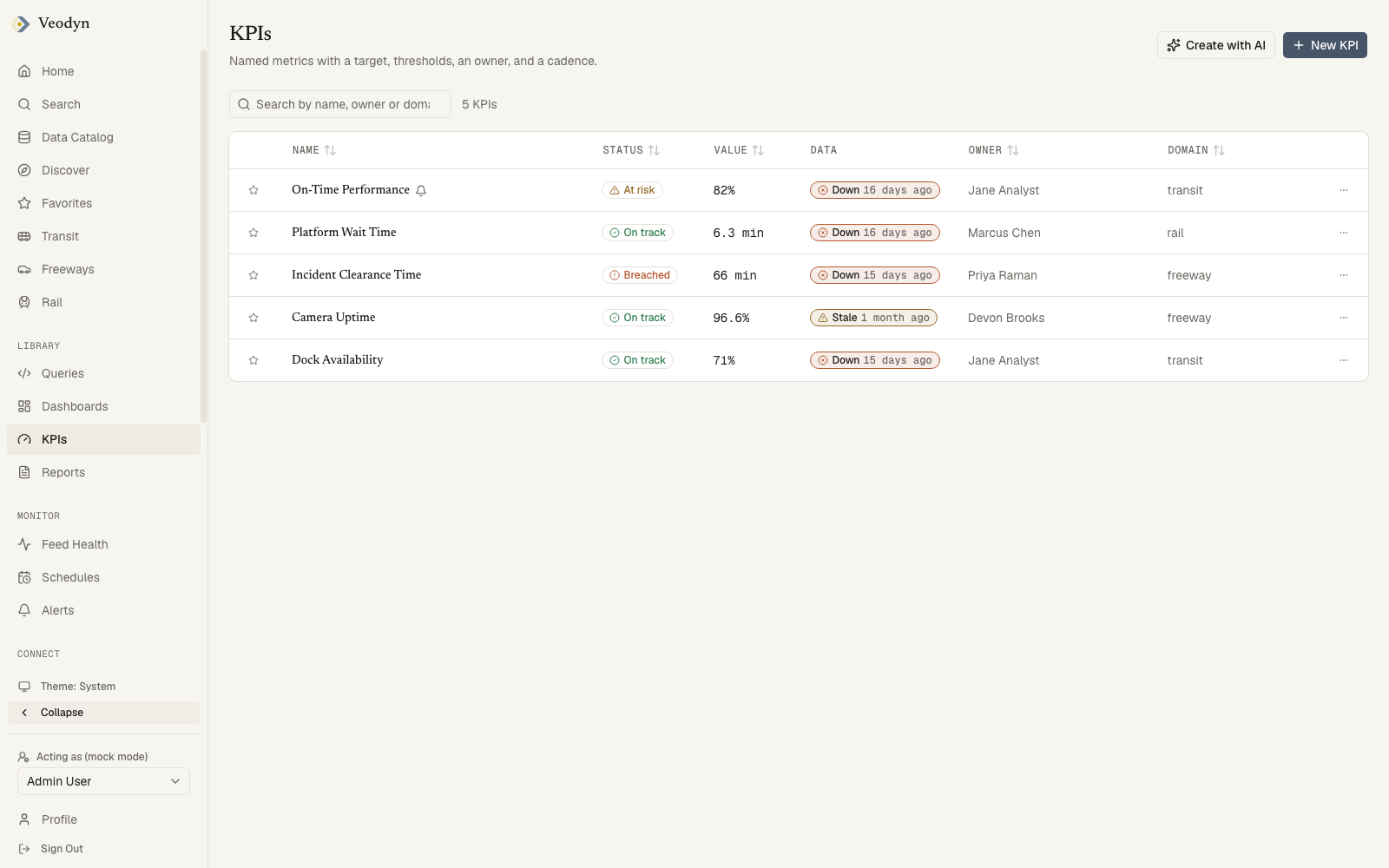
Two columns that answer different questions
Status and Data sit next to each other because they answer different questions, and reading only one of them is how a dead feed goes unnoticed.
| Column | Answers |
|---|---|
| Status | Is this number good? On track, At risk, or Breached against the KPI's own thresholds |
| Data | Is there a number at all? How old the data underneath it is |
A KPI on a frozen feed keeps recomputing on schedule and keeps reporting On track, because the last value it managed to read is still within its thresholds. Only the Data column shows that nothing new has arrived, so On track beside a stale badge is the combination worth stopping at.
Finding one
The search box matches name, owner and domain at once, so typing rail finds both a KPI named "Rail feed capture rate" and every KPI in the rail domain, whatever it is called.
The row menu holds Delete, for the KPI's owner or an admin, and appears only for them.
Header buttons: New KPI, and Create with AI when AI is enabled.
When the list is empty
Three different situations, three different messages: Unable to load KPIs. The KPI service may be unavailable. when the backend cannot be reached, No KPIs yet. on an instance where none has been defined, and No KPI matches that search when your search excluded them all.
Defining a KPI
New KPI is one form in three sections.
Details: name, owner, domain, description, unit, and cadence (Hourly / Daily / Weekly). Name and owner are required; the rest are not, and a KPI with no domain lists as Uncategorized.
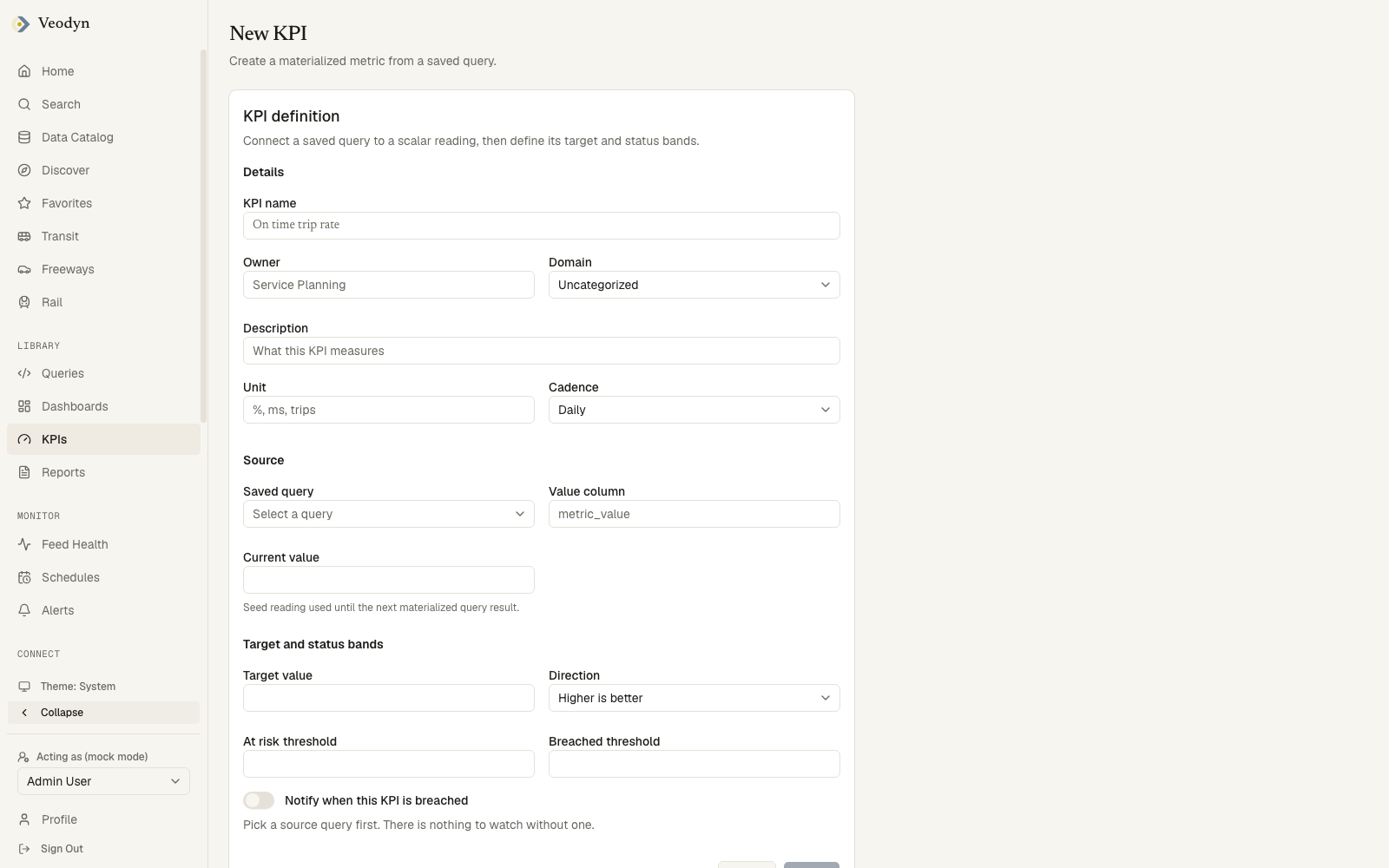
Source: where the number comes from. See What a KPI can measure for the three kinds.
Target and status bands: the target value, the Direction, the At risk threshold, the Breached threshold, and the Notify when this KPI is breached toggle.
What a KPI can measure
A KPI can measure a saved query, naming which of its columns holds the number. It can also measure a capture or a published feed directly, which saves writing a query whose only job is to count how well one of them is behaving.
Source type on the form picks between them, and the two fields beside it change with it. A saved query asks for a query and a value column; the other two ask for a source and a measure.
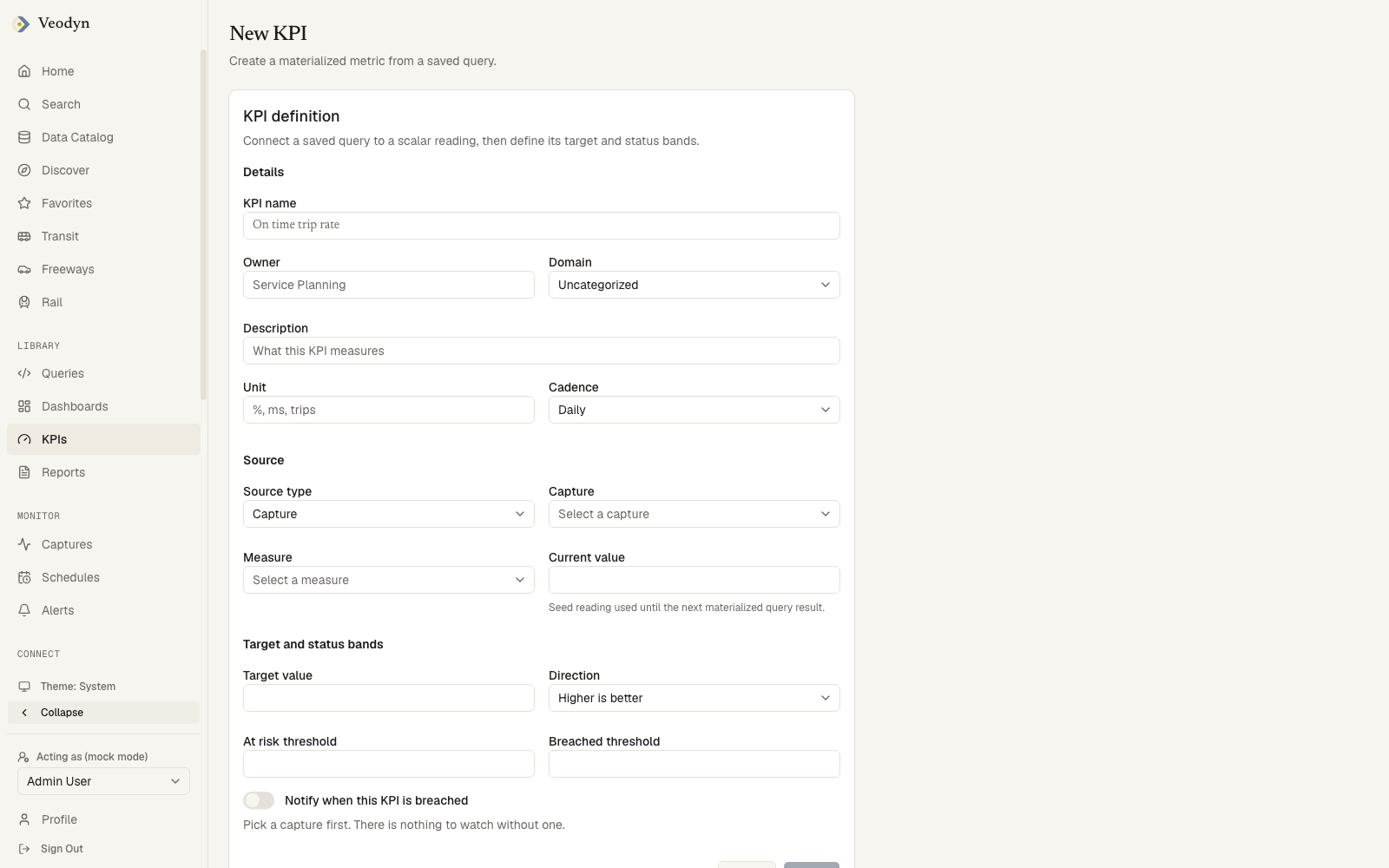
| Source type | You pick | The number is |
|---|---|---|
| Saved query | A saved query and one of its result columns | Whatever that column holds |
| Capture | A capture and a measure | Computed from what it has landed in the warehouse |
| Published feed | A published feed and a measure | Computed from its publish attempts |
Those two are separate kinds rather than one kind with a switch, because their identifiers are not the same thing: a capture is keyed on its warehouse table name and a published feed on the slug an operator chose.
The measures are a fixed list, each with its own unit and its own sense of which direction is good, so the form fills in the direction rather than making you reason it out.
Capture:
| Measure | Unit | Good direction |
|---|---|---|
| Delivery ratio | % | Higher |
| Longest gap | seconds | Lower |
| Rows per capture | rows | Neither |
| Seconds since last row | seconds | Lower |
Published feed:
| Measure | Unit | Good direction |
|---|---|---|
| Publish success rate | % | Higher |
| Blocking rules now | rules | Lower |
| Artifact age | seconds | Lower |
Some measures take a parameter, usually the window to measure over, and delivery ratio also takes the interval the feed is expected to keep.
A KPI measuring a source that later disappears keeps its history rather than being deleted with it, so the record of what that source used to do survives.
You do not type the current value
The Current value area explains itself: Measured, not entered. The first reading arrives on the next scheduled evaluation, usually within a minute. A KPI's value is whatever its query returns on the next tick, so there is nothing to fill in. A typed value would be a measurement that was never taken.
The thresholds have to be in order
Direction decides which order is correct, and the form says so the moment the two disagree:
| Direction | Rule |
|---|---|
| Higher is better | At risk must be above breached |
| Lower is better | At risk must be below breached |
Get it backwards and both fields are outlined with For higher is better, the at risk threshold must be above the breached threshold. Create stays unavailable until it is right, along with a name, an owner, a source query, a value column, and all three numbers.
Why the alert toggle is sometimes off
The Notify when this KPI is breached toggle disables itself when arming could not work, and always says which reason applies:
| Reason | What to do |
|---|---|
| Pick a source query first. There is nothing to watch without one. | Choose the query |
| Pick a value column first. That is the number the alert compares. | Choose the column |
| This query could not be read... | It may be deleted, or not visible to you |
| This query is archived, so an alert on it could never fire. | Use a live query |
| Alerts do not work with parameterized queries: no parameter values reach the scheduled run. | Alert on an unparameterized query |
Each mirrors a refusal the backend would make anyway, so the form never offers a switch the save would reject.
If the save fails you stay on the form with the reason, rather than landing on a list that never received the KPI.
The notify toggle arms a real alert whose condition follows the KPI's breached threshold. Recipients are added on the alert itself once it exists.
On a build with messages on, the KPI page also carries a Rider message card, which drafts a message for riders each time the KPI breaches. Switching it on arms the alert first, since there is no breach to answer without one. The card is described under From an alert or KPI.
Reading a KPI
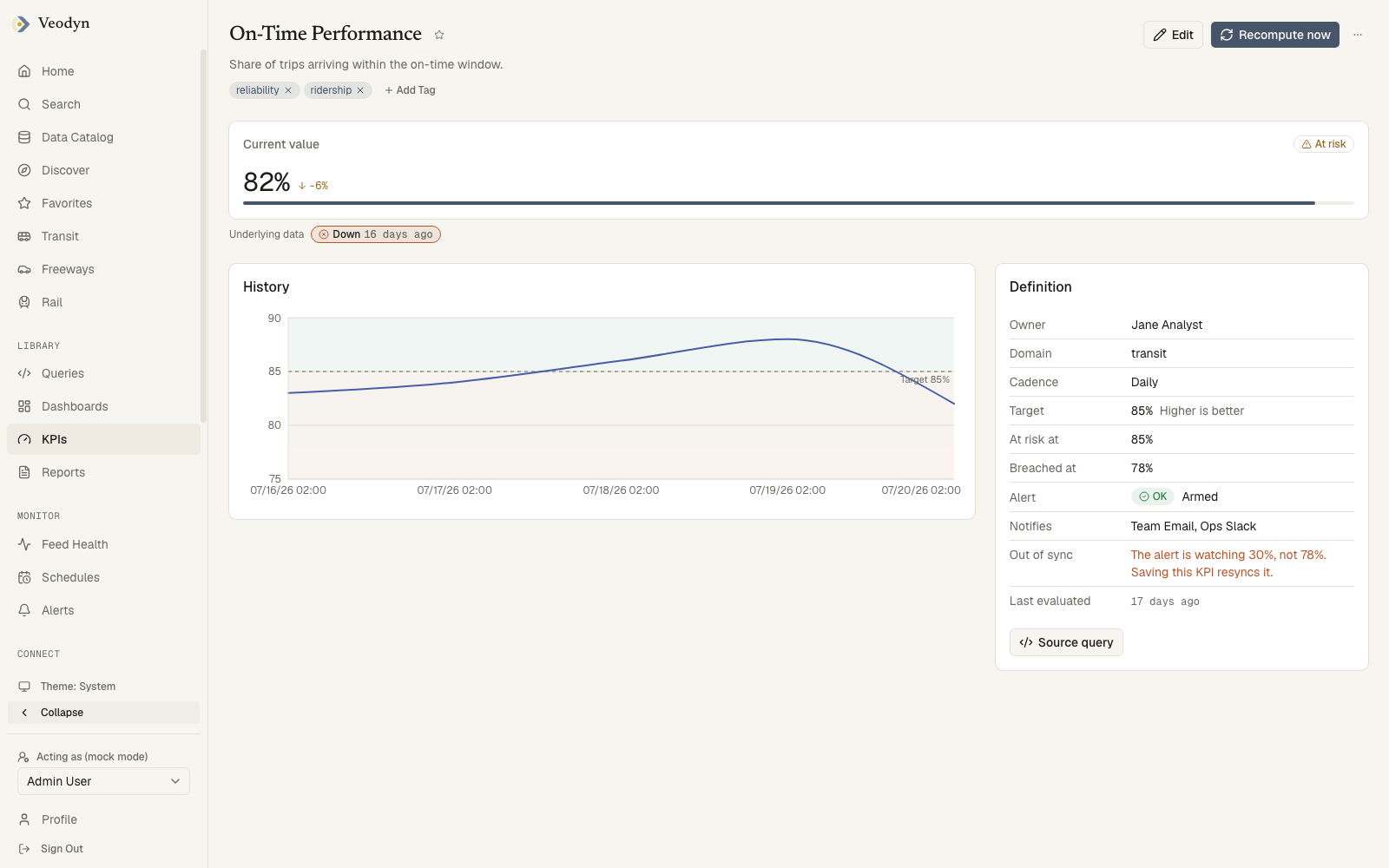
Three panels: the current value, its history, and its definition.
The scorecard leads with the value and its unit, the change since the previous reading, and a status badge. Directly beneath it, outside the card, sits the age of the underlying data.
Those two are separate for the same reason the list's Status and Data columns are. The card's own timestamp describes the evaluation, and a KPI on a dead feed goes on evaluating punctually forever, while the line below it describes the data that evaluation read.
The History chart draws the value over time with the target line and the at-risk and breached bands behind it, so a number drifting toward a threshold is visible before it crosses.
The Definition card
| Row | Holds |
|---|---|
| Owner, Domain, Cadence | Who owns it, its subject, how often it evaluates |
| Target | The target value and the direction, Higher is better or Lower is better |
| At risk at, Breached at | The two thresholds |
| Alert | Armed with the alert's current state, or Not armed |
| Notifies | Where a breach goes, for example you by email |
| Last evaluated | When the metric last ran |
Source query at the bottom opens the query that computes the number, which is the quickest way to answer where a figure comes from before you conclude that a KPI disagrees with something else on screen.
Acting on it
Recompute now forces an evaluation outside the cadence and reports either way. Edit reopens the form. The overflow menu holds Delete, for the owner or an admin only, and returns you to the list afterwards.
Tags are editable by the KPI's owner or an admin, and read-only for everyone else.
A KPI id that does not exist says KPI not found, and a KPI service that cannot be reached says so instead of showing an empty page.
Editing a KPI
Edit reopens the same form with everything filled in, titled Edit <name> and saving with Save instead of Create. A save that fails leaves you on the form with the reason, rather than returning you to a detail page still showing the old definition.
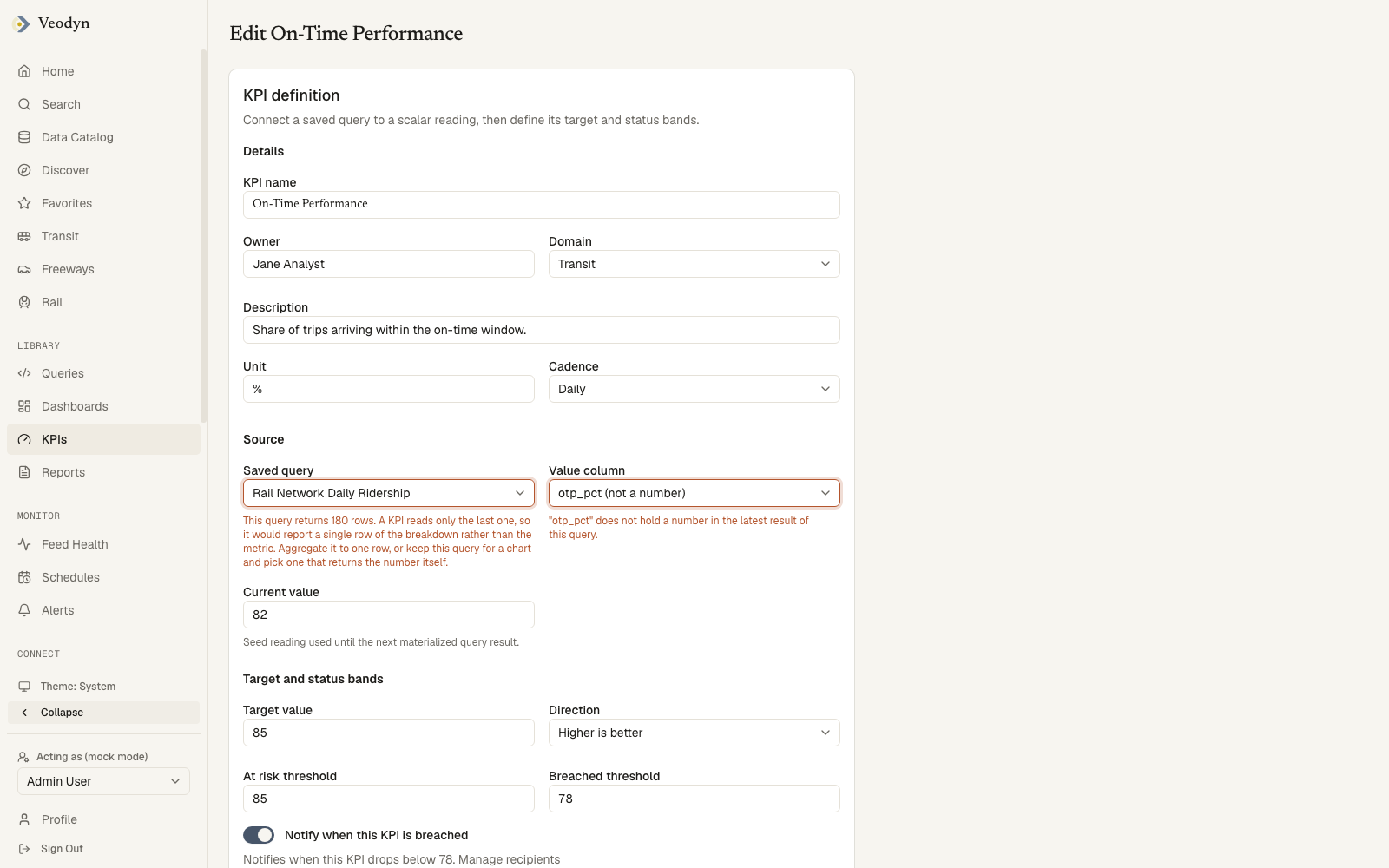
If you change the source query or the value column, the KPI's stored readings are thrown away, and the form warns you first, naming how many will go. They measured the previous metric, so keeping them beside readings of a different number would make the History chart a comparison of two unrelated things. A fresh reading arrives on the next evaluation.
Only the KPI's owner or an admin can save changes. The Edit button is offered more widely than that, so if you do not own a KPI you may get as far as the form and be refused at the last step.
How evaluation works
KPI evaluations run on the sidecar's worker as a dedicated service account (a scheduled job has no user to borrow credentials from), on the cadence you set, with backoff after repeated failures. The history the chart draws is the record of those evaluations.
KPIs are served by the veodyn-api sidecar; on an instance without it, the KPI screens run on demo fixtures.