Produce the monthly operations report
Most agencies owe somebody a periodic operations document: a board, a committee, a funding partner, a city council. It is usually assembled by pasting numbers from several screens into a slide deck, which means the numbers are whatever they were at the moment someone pasted them, and nobody can later say which moment that was.
A report is that document as a product surface. Prose and data blocks compose into one page, a snapshot freezes every number and stamps when it was taken, a second person approves it, and the approved version goes out as a PDF or a public link that keeps serving exactly what was approved, whatever happens to the live data afterwards.
Reports are part of the enterprise edition, so everything on this page needs one.
What has to be true
The numbers have to exist as saved queries first. A report composes and freezes results; it computes nothing of its own. If the document's figures are the monthly ridership numbers, build the ridership pack first; if they are on-time performance, build that query first. The report is the last step, not the first.
Someone other than the author has to hold the publish permission. By default
the four-eyes rule applies: whoever submits a report for review cannot be
the one who approves it. Operators can relax that with
reports.require_separate_approver, but for a document that leaves the
building, two sets of eyes is the point.
Before you start
- The queries behind each figure, each run at least once.
- Any KPIs you want on the page, already defined, since a KPI block shows an existing KPI's scorecard rather than creating one.
- Agreement on who owns the document and who approves it.
The steps
1. Create the report
Library → Reports → New Report asks for a title, an owner (the team or person answerable for the document), and an optional domain. The report opens as a draft, and nothing is frozen until you snapshot it.
2. Compose the document
The block editor is two columns: reorderable block rows on the left, a live preview of the document on the right. Saving is automatic, with a visible status.
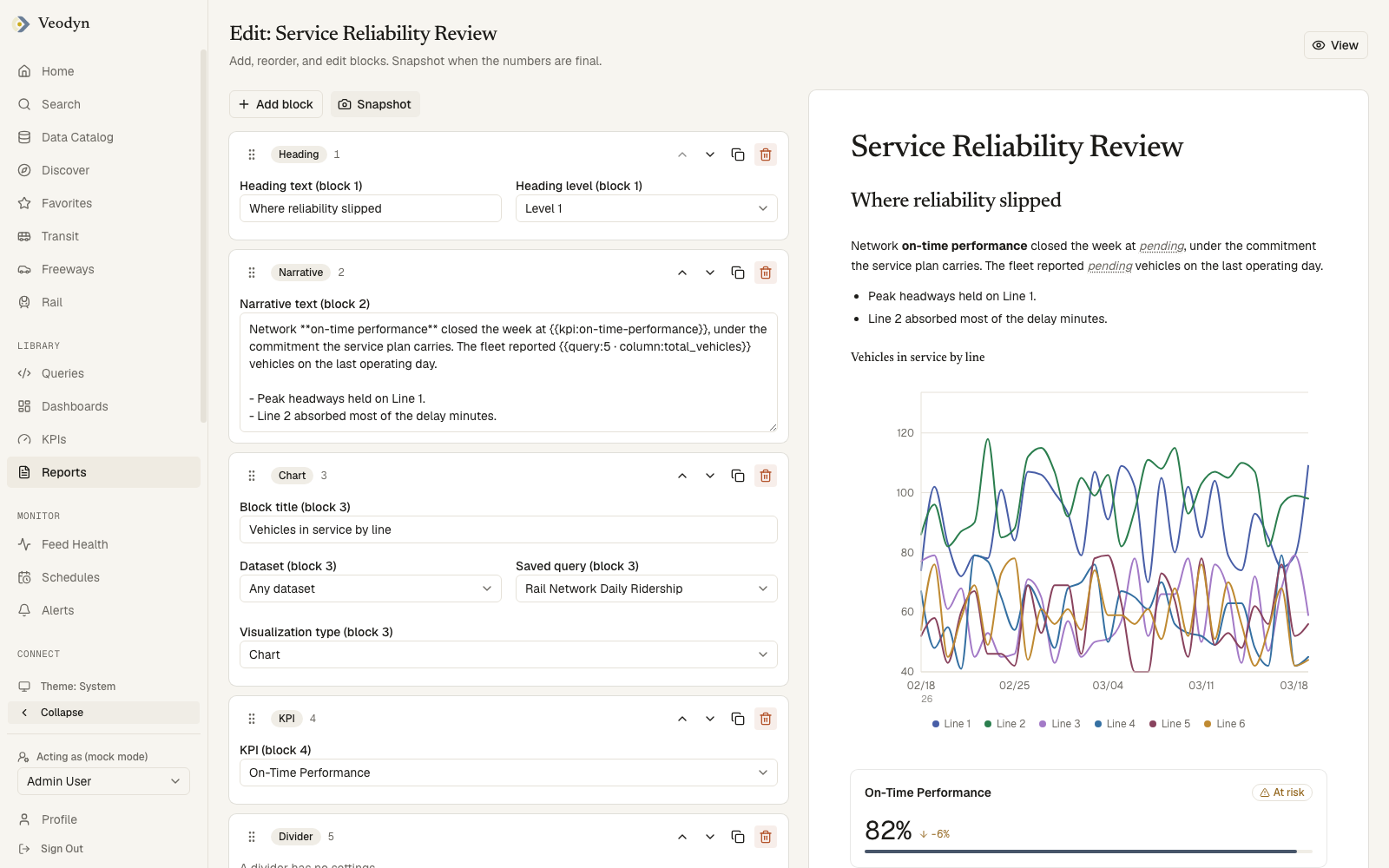
| Block | Use it for |
|---|---|
| Heading, Divider | Structure |
| Narrative | The prose. Inline references like {{query:12 · column:riders}} render as values, so a number quoted in a sentence comes from the same query as the chart beside it |
| Chart / Counter / Table / Map | A data block: a title, a source query, and a visualization type |
| KPI | An existing KPI's scorecard, target and status included |
The one-sentence summary a board actually reads belongs in a Narrative block above the charts, with its figures as inline references rather than typed in.
3. Snapshot to freeze the numbers
Snapshot runs every data block's query and freezes the results into the
document, stamping Data as of. Every data block must resolve to a snapshot
before the report can be submitted, which is also why a report that has never
been snapshotted shows - in the list's Data as of column and cannot go to
review.
4. Send it through review
The Publishing dialog walks the report through its states. Submit for review locks editing and tags; the reviewer then approves, or rejects with a written note that returns it to draft. The author cannot approve their own submission, and every disabled control in the dialog states its reason, so the path forward is always readable off the screen.
5. Publish and distribute
Publishing mints the public link, with an optional expiry date (empty means it lives until revoked). The link renders the frozen snapshot to anonymous readers, search engines are told not to index it, and admins govern every live link at Admin → Shared Links. Download PDF prints the approved publication through the browser's own print dialog.
6. Do next month without starting over
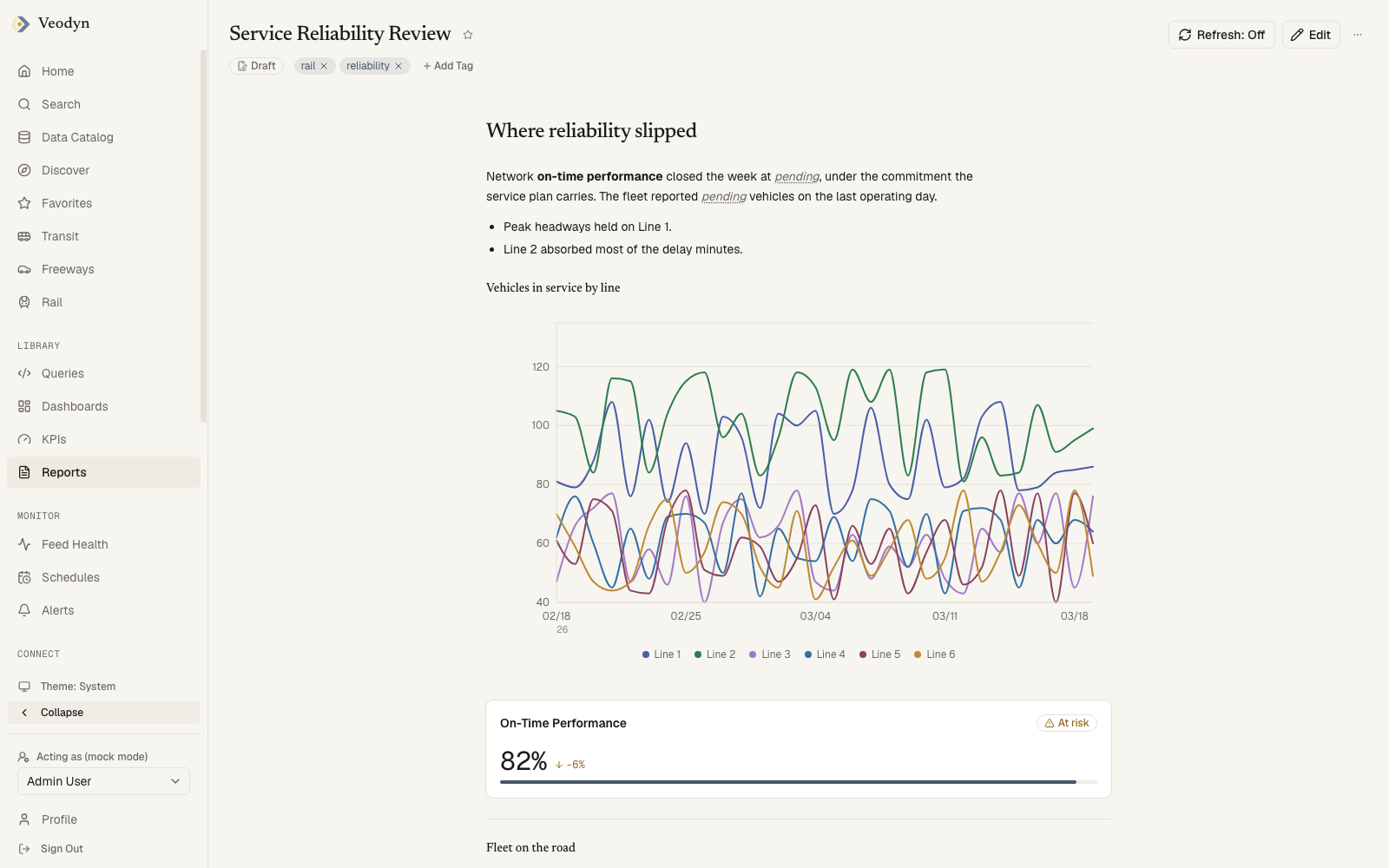
A published report stays editable, and editing it is safe: the public link and the PDF keep serving the approved version, and nothing you draft reaches readers until the report is reviewed and approved again. So next month is update the prose, Snapshot again, resubmit, and the same document and the same link carry the new approved version.
For a standing report whose text rarely changes, the Refresh cadence (Hourly / Daily) re-runs the snapshot server-side, so the numbers stay current without anyone opening the editor.
How you know it worked
Open the public link in a private browser window. You should see the frozen document with its Data as of stamp, signed out, with none of the app around it. Then download the PDF and check a number against the page: both come from the approved snapshot, so they agree, and neither moves when the underlying query is run again.
The Audit trail dialog lists every transition (created, snapshotted, submitted, approved, published) with who and when, which is the record to point at when someone asks how a number got out.
What takes it off the air
| What happened | What you see |
|---|---|
| A data block was added after the last snapshot | The report cannot be submitted until it is snapshotted again |
| The author tries to approve their own submission | Refused, with the four-eyes rule stated on the disabled control |
| The link was revoked or its expiry passed | Readers get "This report is no longer available. The link may have been revoked." The approval itself is untouched |
| The report was deleted while in review | The edit lock covers editing, not removal; Delete works throughout review |
| The approved record is gone | Download PDF stays visible but states why it will not work, rather than printing the draft |